ChatGPT Images 2.0 Explained: What's New, How It Works, and Who Should Use It
A practical guide to ChatGPT Images 2.0, including what changed, how image generation and editing work in ChatGPT, supported plans, API differences, and key safety points for creators.
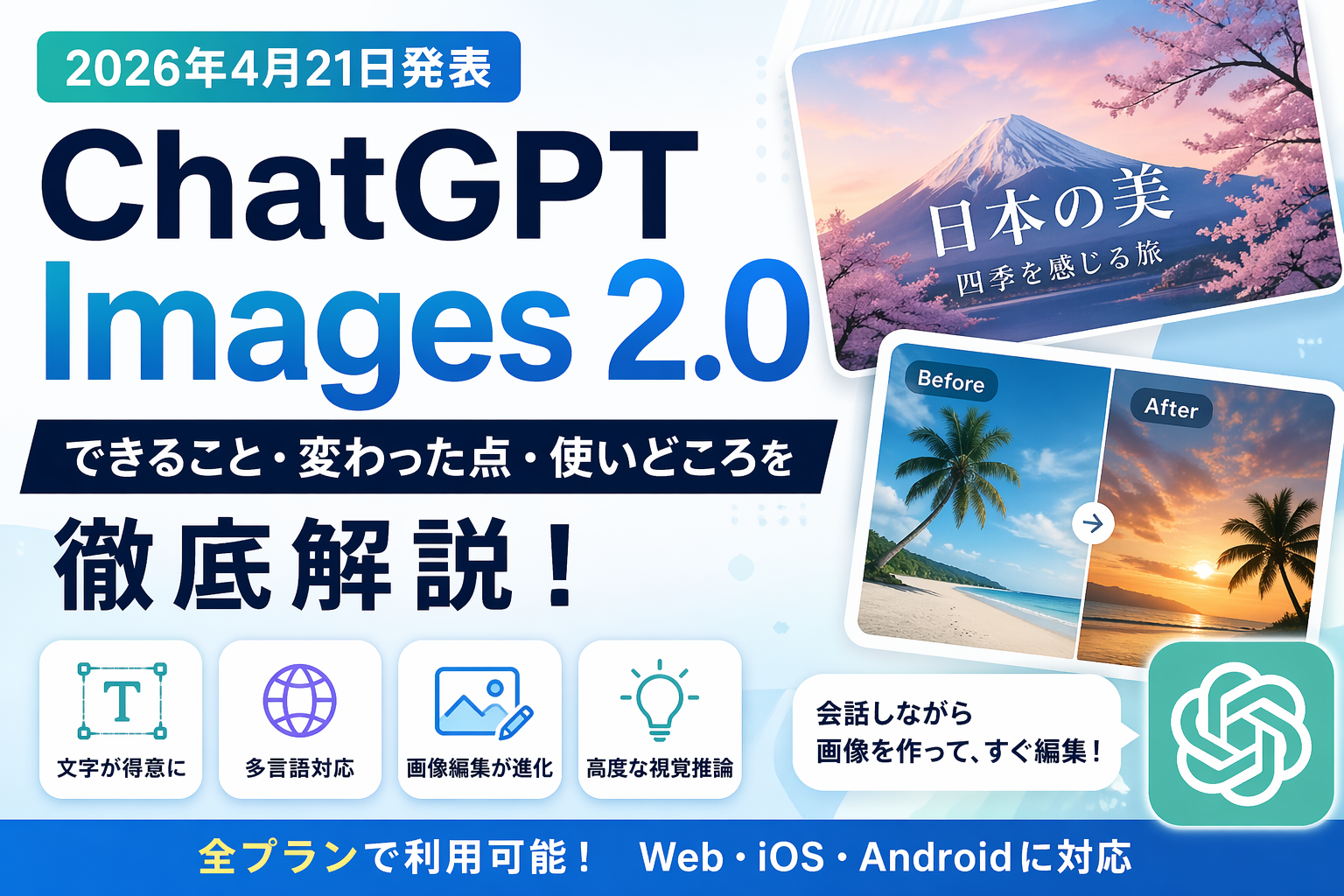
AI image tools are everywhere now, and it is getting harder to tell which one is actually useful for real work. If you already use ChatGPT every day, the natural question is simple: how far can ChatGPT now go with images, and is it finally easier to use than before?
This article explains ChatGPT Images 2.0, announced by OpenAI on April 21, 2026, based on OpenAI's official announcement, help pages, release notes, and system card. We will look at what changed, what it is good for, how it compares with API-based image generation, and what creators should watch out for before using it in blogs, social media, documents, or design workflows.
What is ChatGPT Images 2.0?
ChatGPT Images 2.0 is a new image generation and image editing experience built into ChatGPT. According to OpenAI's release notes, it became available in ChatGPT on April 21, 2026. OpenAI's help documentation also states that ChatGPT Images 2.0 is available across all plans.
The important point is that this is not just a "make me a picture" feature. It is designed as part of the ChatGPT workflow: you can generate images, include text inside visuals, edit existing images, adjust layouts through conversation, and continue refining the result without switching tools.
That makes it useful for blog thumbnails, social media banners, explanatory diagrams, product-style visuals, and draft design ideas. The main advantage is convenience: writing, planning, image creation, and revision can all happen in one place. The limitation is precision. If you need strict pixel-level control, fixed brand templates, or final commercial design production, a dedicated design tool may still be the better choice.
In practice, the usefulness of image AI is not only about whether it can create something impressive. It is about whether you can fix the result quickly. ChatGPT Images 2.0 feels like an update built around that exact problem.
Officially confirmed basics
- OpenAI announced ChatGPT Images 2.0 on April 21, 2026
- OpenAI's release notes say it is available in ChatGPT
- OpenAI's help documentation says it is available across all plans
- OpenAI's help documentation lists Web, iOS, and Android support
- Official sources include OpenAI's website, help center, release notes, and system card
The simplest way to understand it
- It is an image generation and editing feature inside ChatGPT
- It is strongest when you move back and forth between text, images, edits, and regeneration
- It is beginner-friendly, but not a full replacement for professional design software
- Its real value is in everyday production speed, not perfect one-shot output
What has evolved?
The biggest upgrade is text inside images. OpenAI's announcement highlights improved text rendering, which matters for posters, blog thumbnails, social graphics, diagrams, comic-style panels, and instructional visuals. Text has long been one of the weakest areas of AI image generation, so this is a meaningful improvement.
Another important change is multilingual support. OpenAI describes improved multilingual character rendering, which is especially relevant for users who need Japanese, multilingual titles, or non-English visual assets. Image generation tools have often worked best when the final design assumed English. This update moves a step beyond that.
OpenAI's system card also describes progress in world knowledge, instruction following, visual detail, complexity, and dense text handling. In other words, the improvement is not limited to simple illustrations. It should matter most when an image contains multiple elements, needs a coherent layout, or has to communicate information clearly.
The upside is that generated images can be closer to something you would actually publish. The downside is that complex prompts can still become ambiguous. The more capable the model becomes, the more your ability to organize instructions affects the final result.
In short, better image AI does not eliminate the need for clear direction. It rewards people who can describe the goal, constraints, format, and intended use with care.
Key improvements
- Better text rendering inside images
- Stronger multilingual support
- Improved visual reasoning
- Better instruction following
- Stronger handling of detailed, information-rich images
- Flexible aspect ratios
- Transparent background support
- More capable editing of existing images
Practical benefits
- Easier to create visuals with title text
- Easier to test Japanese and multilingual designs
- Better for explanatory graphics and article illustrations
- More useful for blogs, social media, and documents
- More practical when you expect to revise the image several times
Limits to remember
- Text still needs final human checking
- One-shot perfection is not guaranteed
- Overloaded prompts can reduce quality
- Margins, alignment, and small details still need review
- Strict brand guideline work may require manual finishing
What ChatGPT Images 2.0 can do for you
There are three core things you can do with ChatGPT Images 2.0: create new images from text, upload and edit existing images, and use selection tools to change part of an image. OpenAI's help page explains these editing options directly.
That means you can ask for things like "create a horizontal OGP image for this blog post," "change only the background," "keep the person but change the outfit," or "replace the text on this sign." You can edit by opening the image and using the tools, or by giving revision instructions in the conversation.
This makes the feature especially suitable for iterative production. Instead of trying to get a perfect image immediately, it is often faster to generate a solid first draft and refine it. The limitation is that edits are not always perfectly isolated. OpenAI's help documentation notes that changes may extend beyond the selected area.
In real use, this means an image edit may slightly change the overall mood even when you only wanted one part adjusted. That is not unusual for image AI. If the final use is important, edit in stages and check each version carefully.
Examples of what can be done
- Create a new image from text
- Upload and edit an existing image
- Select and change part of an image
- Create an image with a transparent background
- Regenerate an image with a different aspect ratio
- Save images for later reuse
- Revise images without leaving the chat flow
Useful blog and creator workflows
- Drafting OGP images
- Creating horizontal featured images
- Making concept diagrams for articles
- Producing explanatory images for social posts
- Replacing or cleaning up image backgrounds
- Generating multiple visual directions quickly
Points to keep in mind
- Edits may affect more than the selected area
- Text inside images should be enlarged and checked for typos
- People, hands, logos, and small decorations need final review
- Trademarks, copyrighted elements, and likenesses require caution
- Depending on the use case, you should check the relevant usage terms
Increased flow of "think before you make" as well as image generation
One feature worth watching is "Images with thinking." OpenAI's release notes describe it as a mode that spends more time planning and refining before generating an image. OpenAI's help documentation says it is available for Plus, Pro, and Business, with Enterprise and Edu support planned.
This is not simply "slower generation." The point is to improve composition, consistency, and planning before the image is created. It should be most useful for information-heavy diagrams, posters with multiple elements, and visuals that need a coherent layout.
The benefit is quality over speed. The tradeoff is that not every image needs this mode. For a simple mood image, quick social post, or rough thumbnail idea, standard generation may be enough.
Image generation often involves a tradeoff between speed and consistency. The practical approach is to choose the mode based on the job, not because one is always better.
Situations in which Images with thinking is suited
- Images with a lot of text
- Complex compositions
- Explanatory or instructional visuals
- Images with multiple subjects or organized sections
- Projects where a polished result matters more than speed
Situations where normal generation is sufficient
- Simple images focused on mood
- Rough draft generation
- Thumbnail prototyping
- Style comparison
- Fast idea exploration
Tips on how to use
- Use standard generation first to test the direction
- Switch to Images with thinking when the concept is clear
- Use the thinking mode for text-heavy visuals
- Separate rough drafts from final production
- Choose the slower mode only when quality matters more than time
Which plans can I use?
Based on the official information available at the time of writing, ChatGPT Images 2.0 itself is available across all plans. OpenAI's help documentation and release notes also indicate support for Web, iOS, and Android.
Images with thinking is different. OpenAI says it is available for Plus, Pro, and Business, with Enterprise and Edu coming later. The simplest way to understand the difference is this: basic image generation is broadly available, while the more advanced planning-focused mode is limited to selected plans for now.
OpenAI's Free Tier FAQ also says free users can create images with ChatGPT, while Plus users receive higher rate limits. So the difference is not only whether you can use the feature. It is also how much room you have for trial and error.
The advantage is accessibility. The disadvantage is that free usage may feel restrictive if you repeatedly generate and edit images. Your experience will depend heavily on how often you revise.
Official availability at the time of writing
- ChatGPT Images 2.0 is available for all tiers
- Web, iOS, and Android are supported
- Images with thinking is available for Plus, Pro, and Business
- Images with thinking will be available soon for Enterprise and Edu
- Free users can also create images
- OpenAI's FAQ says Plus users have higher usage limits than free users
Who can start with the free plan?
- People who want to test the feature first
- Users who only need occasional images
- Bloggers who want to try simple thumbnails or illustrations
- People who do not need many comparison drafts
- Users who can tolerate tighter limits during experimentation
Points to note
- Specific limits may vary
- Rate limits may change over time
- Check OpenAI's official help pages for the latest details
- Avoid assuming exact numbers unless OpenAI confirms them
- If the feature stops working, you may have reached a usage limit
What is the difference between the API and ChatGPT?
OpenAI's developer documentation provides an API-side model called gpt-image-2. The model description highlights high-quality image generation and editing, high-fidelity image input, and flexible size support. This is the route for developers who want to build image generation into apps, services, or internal workflows.
ChatGPT Images 2.0, by contrast, is the user-facing experience inside ChatGPT. It is designed for conversational use: ask, generate, review, edit, and repeat. Even if the underlying technology is related, the entry point and workflow are different.
The advantage of ChatGPT is that non-developers can use it immediately. The advantage of the API is automation. For bloggers, writers, and individual creators, ChatGPT will often be enough. For e-commerce image workflows, internal tools, batch generation, or custom applications, the API becomes more valuable.
A practical approach is to start in ChatGPT, identify the image patterns you actually need, and only move to the API once the workflow becomes repeatable. Automating too early can make the process more complicated than necessary.
ChatGPT is better for
- People who want to create images without development
- Users who prefer conversational trial and error
- Bloggers and social media creators
- People who want to revise images on the spot
- Individuals and small teams
The API is better for
- Developers building image generation into apps
- Teams that need large-scale or repeated generation
- Workflows that require automation
- Users who need detailed input, output, and cost control
- Systems that combine text processing and image processing
Guideline for judgment
- If you create images manually each time, use ChatGPT
- If the work becomes repetitive, consider the API
- First, define the type of image you want through conversation
- Automate only after the pattern is stable
- Clarify the use case before choosing the technology
Why it's worth a try for bloggers now
ChatGPT Images 2.0 is especially compatible with blogging because writing and visual planning are closely connected. You can ask for a horizontal OGP image that summarizes an article, a beginner-friendly visual style, an image without text, or an illustration with a Japanese editorial feel, all within the same conversation.
Features described in OpenAI's help documentation, such as transparent backgrounds, aspect ratio changes, and existing image editing, are also useful for blog operations. Featured images, in-article illustrations, comparison graphics, and social announcement images can all be handled in one workflow.
The main benefit is that you can create first drafts without outsourcing every visual. The drawback is consistency. If you want a recognizable site identity, you still need your own templates or prompt rules. Otherwise, the style may drift from article to article.
For blogging, the real value is not producing one masterpiece. It is being able to create good-enough visuals consistently and quickly. ChatGPT Images 2.0 is valuable because it lowers the friction of that ongoing process.
Useful blog applications
- Prototyping OGP images
- Creating featured images for articles
- Making concept diagrams for difficult topics
- Producing social announcement images
- Refreshing images in older articles
- Adjusting visuals for seasonal campaigns
Advantages
- Image creation can happen alongside writing
- Multiple visual ideas are easy to compare
- Revision requests can be written in natural language
- Less time is spent searching for stock assets
- The visual direction can be developed through conversation
Drawbacks and countermeasures
- Style can vary between generations
- Use fixed rules for color, composition, people, and seasonal tone
- Text inside images can still contain mistakes
- Always zoom in and check the final image before publishing
- Compare two or three final candidates instead of choosing the first result
Points to note before use
This is where you should slow down. OpenAI's help documentation notes that selected edits may affect more than the intended area. OpenAI's system card also makes clear that image generation operates within safety policies and limitations.
AI image generation is useful, but it does not prove facts. Be careful when using generated images for products, medical explanations, news-style visuals, or anything that might be mistaken for a real photograph. A realistic-looking image of something that never happened can damage trust if used carelessly.
The strength of AI images is imagination: concepts, illustrations, drafts, diagrams, and visual metaphors. The weakness is factual recordkeeping. The more realistic the images become, the easier it is to forget that distinction.
The safest mindset is to treat image AI as an assistant, not a substitute for evidence. If you clearly separate real photos, commissioned visuals, and AI-generated explanatory images, the workflow becomes much more reliable.
Things to keep in mind
- Generated images are not factual photographs
- Editing existing images may change unintended parts of the image
- Text rendering has improved, but final checking is still necessary
- Real people, property, brands, and copyrighted elements require care
- Misleading use creates accountability risks
Safe use behavior
- Do not present AI images as documentary photos
- Clarify the role of the image when needed
- Avoid exaggerating products, people, or results
- Have another person review important visuals before publication
- Decide the purpose of the image before generating it
How to handle official information
- Use official announcements and help pages to confirm whether a feature exists
- Check release notes for availability
- Check the system card for safety-related details
- Treat unverified claims as unconfirmed
- Prioritize primary sources over rumors or screenshots
Summary: ChatGPT Images 2.0 is closer to everyday usable image AI
ChatGPT Images 2.0 is a new image generation and editing experience announced by OpenAI on April 21, 2026. Based on official information, the main improvements include better text rendering, stronger multilingual support, improved visual reasoning, easier editing, transparent backgrounds, and flexible aspect ratios.
It is not a perfect replacement for design software, and final human review is still necessary. But for blog management, social media work, simple design drafts, and explanatory visuals, it is much closer to a practical everyday tool than a novelty.
If you want to test it, start with three simple tasks: a horizontal OGP image, a text-free featured image, and a small explanatory illustration. That will quickly show whether ChatGPT Images 2.0 fits your workflow.
Image generation AI often looks like a flashy technology shift, but its real value is simpler: does it make today's work easier? For creators who regularly struggle with thumbnails, diagrams, and social visuals, this update may be more practical than it first appears.