Mac keyboard shortcuts you’ll actually use (no memorization required)
A curated list of Mac keyboard shortcuts you’ll really use—no need to memorize everything—covering everyday tasks, Finder, text editing, screenshots, and browsers.
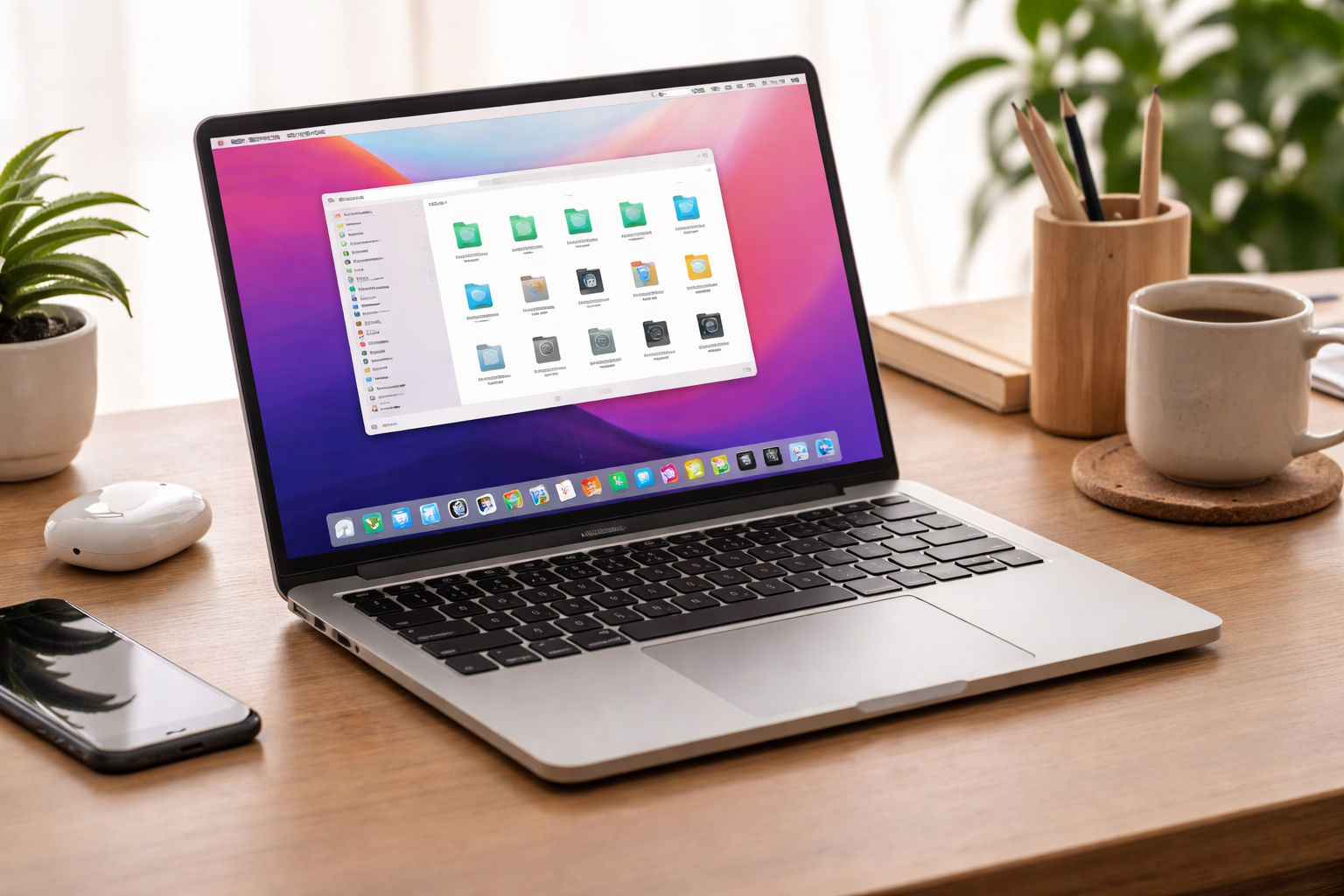
Mac keyboard shortcuts make work feel frictionless, but the sheer number of them overwhelms people and they drift back to the mouse.
Good news: you don’t need to memorize everything. Start with shortcuts that match what you already do daily. A few habits will noticeably smooth out your Mac workflow.
This guide cherry-picks shortcuts that genuinely help with daily work—nothing to cram—organized by purpose so you can adopt them at your own pace.
Core shortcuts everyone should know
These work in almost every app:
- ⌘ + C: Copy
- ⌘ + V: Paste
- ⌘ + X: Cut
- ⌘ + Z: Undo
- ⌘ + A: Select all
- ⌘ + S: Save
- ⌘ + Q: Quit app
Copy, paste, undo, and save are the highest-value keys to ingrain first.
Manage apps and windows faster
Switch and organize apps
- ⌘ + Tab: Cycle through running apps
- ⌘ + `: Switch windows inside the same app
- ⌘ + H: Hide the current app
- ⌘ + Option + H: Hide all other apps
Using ⌘ + Tab and ⌘ + ` alone cuts down on mouse travel when many apps are open.
Window controls
- ⌘ + W: Close window
- ⌘ + M: Minimize window
- ⌘ + Control + F: Toggle full screen
Remember: closing a window (⌘ + W) is different from quitting the app (⌘ + Q).
Finder shortcuts that save clicks
Basic file management
- ⌘ + N: New Finder window
- ⌘ + Shift + N: New folder
- ⌘ + Delete: Move to Trash
Move and preview
- ⌘ + ↑: Go up one level
- ⌘ + ↓: Open selected folder
- Space: Quick Look preview
Quick Look (Space) is a Mac superpower: preview a file without opening it.
Text editing shortcuts that keep you in flow
Move the cursor
- Option + ← / →: Jump by word
- ⌘ + ← / →: Jump to start/end of line
Select faster
- Shift + ← / →: Select by character
- Option + Shift + ← / →: Select by word
- ⌘ + Shift + ← / →: Select the whole line
Fewer mouse movements means fewer context switches while writing or coding.
Screenshots and screen control
- ⌘ + Shift + 3: Full-screen capture
- ⌘ + Shift + 4: Select an area to capture
- ⌘ + Shift + 5: Open the screenshot and recording panel
If you create docs or share screens often, ⌘ + Shift + 5 is worth memorizing.
Browser shortcuts you’ll hit daily
Works in Safari, Chrome, and most browsers:
- ⌘ + T: New tab
- ⌘ + W: Close tab
- ⌘ + Shift + T: Reopen closed tab
- ⌘ + L: Focus the address bar
- ⌘ + R: Reload
Make shortcuts stick (without memorizing everything)
- Pick one new shortcut per day and use it intentionally.
- Tie shortcuts to daily actions (copy/paste, tab switching, Quick Look).
- Keep a tiny sticky note on your monitor for a week, then remove it.
The goal is gradual habit-building, not rote memorization.
Summary
Mac shortcuts boost comfort as soon as you connect them to tasks you already do. Focus on the essentials—app switching, window control, Finder moves, text selection, screenshots, and browser tabs. Try one new shortcut today and let it settle into muscle memory; your Mac will feel faster without any extra effort.